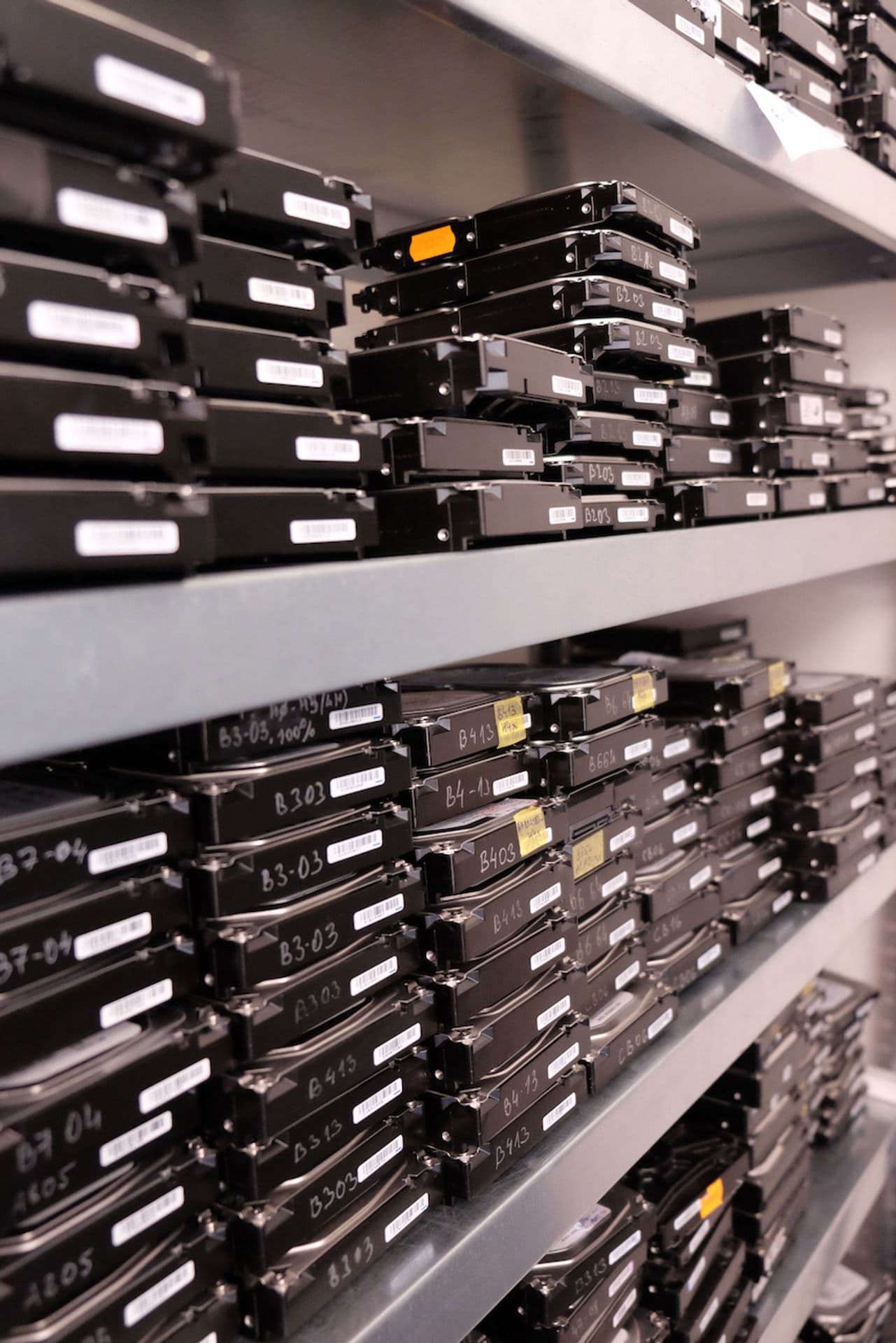
How to Clone a Hard Drive — Complete Guide
Cloning creates an exact copy of your entire drive — including the operating system, programs, settings, and all data. Unlike regular file copying, cloning preserves everything: hidden system files, partition structure, and boot records. The result is a drive you can swap in and boot from immediately.
When Do You Need to Clone a Drive?
Upgrading to a New Drive
The most common reason. Instead of reinstalling Windows and all your programs, you clone the old drive to the new one. Everything works exactly as before — just faster or with more space.
Full System Backup
Cloning provides a complete backup of your entire computer. Unlike file-level backups, a clone preserves the operating system and all settings. If your drive fails, you can resume work immediately.
Migrating from HDD to SSD
When upgrading from a traditional hard drive to an SSD, cloning lets you keep all your data and settings while gaining significantly better performance.
Archiving Business Systems
For companies, cloning is ideal for archiving complete systems including all installed software and licenses — useful during hardware changes or for disaster recovery.
Creating Test Environments
IT professionals and developers often need identical copies of systems for testing. Cloning creates multiple identical environments quickly.
Cloning vs. Backup — What's the Difference?
Cloning creates an exact bit-for-bit copy of the entire drive:
- Copies everything, including empty sectors
- Preserves partition structure and layout
- Result is immediately bootable
- Requires a target drive of equal or larger size
Backup saves only files and folders:
- Copies only data, not the full drive structure
- Not directly bootable — must be restored
- Can be compressed to save space
- Allows selective restore of individual files
Choose cloning when: replacing a drive, need an instantly bootable copy, migrating hardware. Choose backup when: regular data protection, saving storage space, restoring specific files.
How to Prepare for Cloning
Check the Source Drive Health
Before cloning, verify your source drive is healthy. Cloning a damaged drive can transfer errors to the new one.
In Windows: Open File Explorer → Right-click the drive → Properties → Tools → Check.
If errors are found, fix them before cloning. If the drive makes unusual noises or keeps freezing, don't run any checks — every further hour of operation can make a later recovery harder.
Clean Up the Source Drive
Remove unnecessary files to speed up the process:
- Delete temporary files
- Empty the Recycle Bin
- Uninstall unused programs
- Clean the Downloads folder
Choose Your Target Drive
The target must be equal to or larger than the source. Recommendations:
- SSD for system drives — faster boot, better reliability
- HDD for data archives — better price per GB
- External drive for backups — easy to disconnect and store safely
Ensure Stable Power
A power interruption during cloning can corrupt both drives.
- Desktop: use a UPS if available
- Laptop: connect the charger, battery should be at least 50%
How to Clone a Drive in Windows
Windows built-in tools cannot create true bit-for-bit clones. Use specialised software:
- Clonezilla — Free, open-source. Boots from USB, advanced features.
- AOMEI Backupper — Free version with graphical interface.
- Macrium Reflect — Professional tool popular with IT specialists.
- Acronis True Image — Popular paid solution for cloning and backup.
- EaseUS Todo Backup — Universal paid tool.
Typical Cloning Steps (any software)
- Connect the target drive to your computer
- Launch the cloning software
- Select the source drive (the one you want to clone)
- Select the target drive (destination)
- Review settings (usually keep defaults)
- Start cloning and wait for completion
- Verify the clone is successful
Important: Cloning erases all data on the target drive. Double-check that you have selected the correct drive!
Hardware Cloning — Docking Stations
Docking stations with cloning function allow you to clone drives without a computer:
Advantages:
- Independent of any operating system
- High transfer speeds
- Simple one-button operation
- Can clone drives from non-booting systems
Disadvantages:
- Higher purchase cost
- Limited configuration options
Best for: IT technicians, servers where software can't be installed, damaged systems that won't boot.
HDD to SSD Cloning (Most Common Scenario)
Migrating from HDD to SSD is the most common cloning use case.
Before cloning:
- SSDs are usually smaller than HDDs — verify sufficient capacity
- Clean the HDD to reduce data size
- Check that the SSD firmware is up to date
After cloning:
- Change BIOS boot order to the new SSD
- Verify TRIM is enabled
- Confirm AHCI mode in BIOS settings
Comparison Table:
| Source → Target | Recommendation | Notes |
|---|---|---|
| HDD → SSD | Best upgrade | Enable TRIM, AHCI |
| SSD → SSD | Fastest | No special steps |
| HDD → HDD | For archival | Defragment after cloning |
| SSD → HDD | Not recommended | Loss of speed |
Troubleshooting Common Problems
"Target disk is too small" Clean the source drive, or use a tool that supports partition resizing.
"Disk is in use by another process" Close all programs, restart, or use a bootable clone tool.
Slow cloning speed Use SATA instead of USB, close background programs, use USB 3.0+ cables.
Cloned drive won't boot Check BIOS boot order, mark the partition as active, repair the MBR/GPT.
System is slow after cloning to SSD Verify TRIM is enabled and AHCI mode is active in BIOS.
Missing files after cloning Check hidden/system files. Verify partition sizes match on both drives.
Security Considerations
A clone contains everything — saved passwords, license keys, personal documents, browsing history. Before cloning:
- Log out of online services
- Clear browser cache and saved passwords if the clone will be stored or shared
When disposing of old drives after cloning:
- HDD: use multi-pass overwrite
- SSD: use Secure Erase command
When to Get Professional Help
If you run into problems during cloning — a partially damaged clone, a source drive that keeps dropping out, or data that seems lost — stop and don't retry repeatedly. At DataHelp, we recover data from all types of drives. Register your case online — the initial assessment is free and you receive a binding quote before any recovery work starts. No Data, No Fee. Send the drive to our lab with a tracked, insured carrier, hand it in personally in Prague, Vienna or Bratislava, or book our optional insured DPD pickup (€45, non-refundable; available in AT, BE, CZ, DE, DK, FI, FR mainland, HU, IT mainland, LU, NL, PL, SE, SI and SK).