5 Fatal Mistakes When Trying to Recover Data from HDD
5 Fatal Mistakes When Trying to Recover Data from HDD
Your hard drive just failed. Maybe it's making strange sounds, maybe the computer doesn't see it, maybe it just froze in the middle of work. At that moment, it's natural to want to fix the problem as quickly as possible – but hasty action can destroy your data forever.
In more than 35 years of practice, the DataHelp team has seen thousands of cases where people tried to recover data themselves – and dramatically reduced the chances of recovery. Some mistakes are irreversible.
Here are 5 fatal mistakes you must avoid.
Mistake #1: Repeatedly Turning On the Drive
"I'll try one more time, maybe it'll work."
This is the most common and often most destructive mistake. When a drive fails, we intuitively want to try if it will "change its mind." But each startup of a damaged drive could be the last.
What Happens Inside
If the read heads are damaged, each startup:
- Heads attempt to read data from the platter
- Damaged heads may scratch the surface
- Microscopic particles are created that damage other areas
- With each attempt, the situation worsens
Why It's Fatal
With a drive with damaged heads:
- 1st startup: Minor damage, good chances of recovery
- 2nd startup: Damage spreads, chances drop
- 5th startup: Extensive platter damage, recovery much harder
- 10+ startups: May already be unrecoverable
Correct Procedure
- Start the drive maximum once to verify the problem
- If it makes unusual sounds, shut down immediately
- Don't turn on again – not even "just for a moment"
- Disconnect the drive and contact an expert
Mistake #2: Using Recovery Software on a Damaged Drive
"I'll download a data recovery program, that'll be free."
Recovery software has its place – but not on a mechanically damaged drive. It can dramatically worsen the situation.
When Software CAN Help
- Accidentally deleted files (without mechanical damage)
- Formatted drive (if otherwise healthy)
- Damaged file system (logical error)
When Software HARMS
- Drive makes unusual sounds
- Drive isn't recognised or is recognised incorrectly
- Drive is extremely slow
- Any suspicion of mechanical damage
Why Software Worsens the State
Recovery programs read the drive sector by sector. On a damaged drive, this means:
- Hundreds of thousands of read attempts on problematic areas
- Repeated stress for damaged heads
- Heating the drive during long operation
- Increasing number of bad sectors
Professional recovery uses specialised hardware that:
- Reads the drive with minimal stress
- Skips problematic areas and returns to them later
- Creates a sector copy before any work
Correct Procedure
- Before using software, verify the drive is healthy (SMART values)
- When in doubt, contact an expert
- Our initial case assessment is free – don't risk it
Mistake #3: Opening the Drive Outside a Dust-Free Environment
"I'll look inside, maybe something is just stuck."
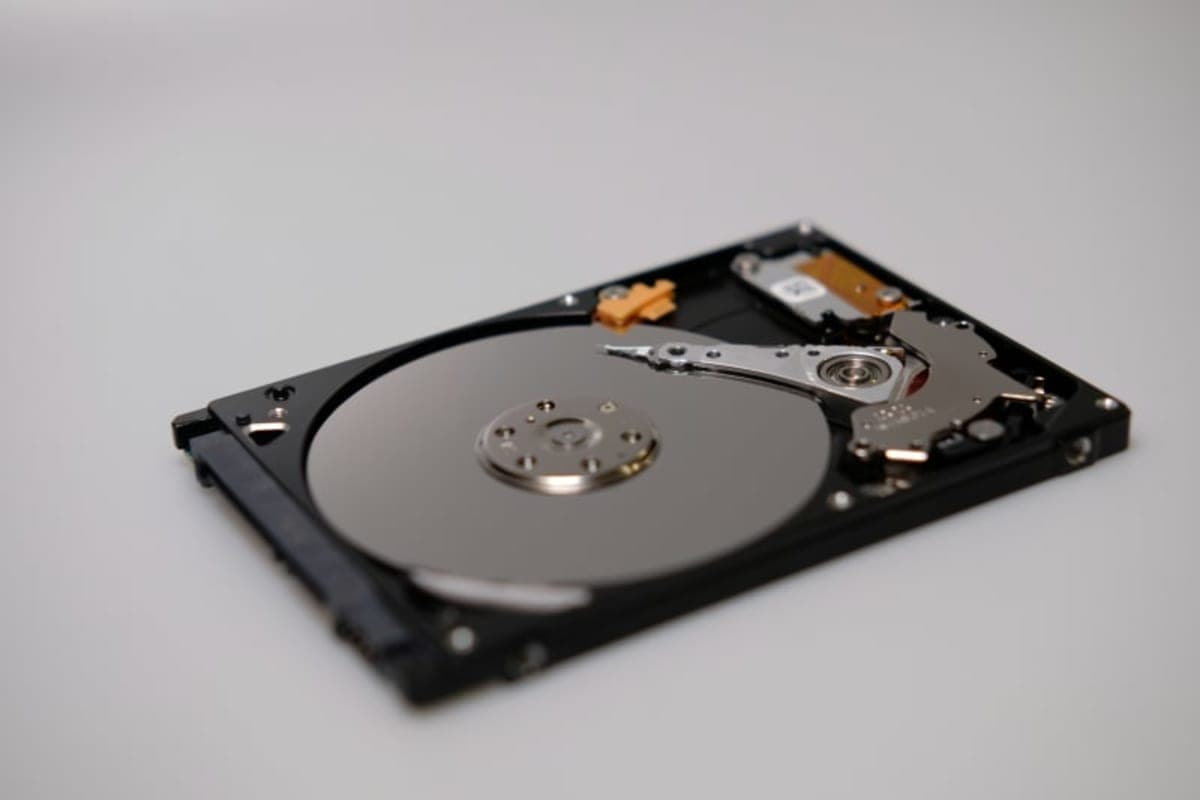
This is one of the most dangerous things you can do. Opening a drive in a normal environment almost certainly means the end for your data.
Why It's Fatal
Read heads float above the platter at a distance of 3-5 nanometers. For comparison:
- Human hair: 80,000 nm
- Dust particle: 500-5,000 nm
- Cigarette smoke particle: 200-500 nm
- Head-to-platter distance: 3-5 nm
Any particle that gets between the head and platter causes immediate damage.
What Is an ISO Class 5 Environment?
Professional laboratories open drives only in an environment of ISO Class 5 or better – in our lab, in laminar flow boxes:
- Maximum 100,000 particles of 0.1 µm or larger per m³
- HEPA/ULPA-filtered laminar airflow that continuously carries particles away from the open drive
- Antistatic environment
Normal office air contains millions of particles that would destroy the drive.
Correct Procedure
- Never open a drive at home or in the office
- If you've already opened the drive, close it immediately and contact us
- Even an opened drive can sometimes be recovered – but chances drop significantly
More about recovering mechanically damaged drives →
Mistake #4: Freezer and Other "Internet Tricks"
"I heard if I put the drive in the freezer, it'll start working."
This myth comes from the 90s and no longer works today. Modern drives have completely different construction.
Why It Doesn't Work
Historically (very old drives):
- Cold was supposed to shrink expanded components
- Sometimes it temporarily helped
Today:
- Drives have tight tolerances
- Cold causes moisture condensation inside the drive
- Moisture + electronics = short circuit
- Moisture + platter = corrosion and damage
Other "Tricks" That Don't Work
❌ Tapping on the drive – can shift heads out of position ❌ Holding the drive upside down – has no effect ❌ Spinning quickly by hand – damages bearings ❌ Hair dryer or in oven – destroys electronics and platters ❌ Swapping PCB board from another drive – firmware is unique to each unit
Correct Procedure
- Keep the drive at room temperature
- Don't manipulate it
- Contact a professional
Mistake #5: Formatting and System Reinstallation
"Windows reports an error, so I'll reinstall."
When the system reports drive problems, some users react by reinstalling Windows or formatting. This can be fatal.
What Formatting Does
- Quick formatting: Overwrites metadata (file table)
- Full formatting: Overwrites the entire drive with zeros
In both cases:
- The operating system writes to the drive
- New data overwrites old data
- Each write reduces recovery chances
Special Risk with SSDs
Modern SSD drives with enabled TRIM erase deleted data immediately and irreversibly. Formatting an SSD = almost certain data loss.
Correct Procedure
- Don't format a drive with important data
- Don't install anything on a damaged drive
- If the system reports errors, disconnect the drive and diagnose elsewhere
- If you need a working system, use a different drive
What to DO Correctly?
If your HDD failed or is behaving suspiciously:
Immediate Steps
- Stop working – don't save more files
- Shut down the computer – hold the power button for 5 seconds
- Disconnect the drive – if safely possible
- Document – what sounds, what errors, what preceded
What Not to Do
- ❌ Don't turn on the drive repeatedly
- ❌ Don't use recovery software
- ❌ Don't open the drive
- ❌ Don't put in the freezer
- ❌ Don't format
Next Steps
- Contact an expert – the sooner, the better
- Wait for the case assessment – it's free
- Decide – based on the binding quote
I Already Made a Mistake – Is It Too Late?
Not always. Even after mistakes, data can sometimes be recovered. It depends on:
- Type of mistake – one extra startup is less serious than opening the drive
- Extent of original damage – lightly damaged drive tolerates more
- Speed of response – the sooner you stop, the better
Principle: As soon as you realise the mistake, stop immediately and contact us. Don't continue trying to "fix" the situation.
Frequently Asked Questions
Does the chance of recovery decrease with each attempt?
Yes, significantly. With a mechanically damaged drive, each startup can noticeably reduce the chances, depending on the type of damage.
What if I already opened the drive?
Close it immediately and contact us. Don't try to fix anything. Even a contaminated drive can sometimes be recovered, but chances decrease with every minute it's open.
Can I at least use CHKDSK?
No, if you suspect mechanical damage. CHKDSK intensively reads and writes to the drive, which can worsen the situation. If the drive makes unusual sounds, don't use any diagnostic tools.
Need Help?
If your drive failed, don't experiment. Register your case – the initial assessment is free and we'll tell you what realistic recovery options exist.
Free case assessment | Binding quote before recovery starts | No Data, No Fee
Send the drive to our lab with a tracked, insured carrier, hand it in personally in Prague, Vienna or Bratislava, or book the optional insured DPD pickup (€45, available in selected EU countries).
Email: info@datahelp.eu